 PlainSkillsZero0
Getting started with Claude
What is Claude? An AI assistant you talk to by typing. You ask, it answers: it writes, explains, summarises, translates and helps you think things through.
Everything here comes with Claude as standard. You don't need to install or buy anything extra.
The screenshots come from the Spanish version of claude.ai. Yours will be in your language and may look slightly different, but the buttons sit in the same places.
1. Open Claude
Go to claude.ai in your browser, or install the Claude app on your computer or phone. Sign up with your email or a Google account.
The free plan is enough to learn. It limits how much you can use in a few hours; paid plans have more room. Some features depend on your plan.
2. Write what you need
The big box in the middle is where you write (1). Write the way you would to a helpful person, then press Enter. The + button (2) is for files and extras (step 4).
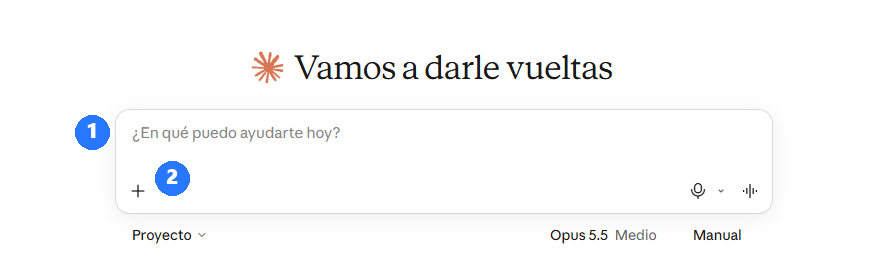
- Explain what a PDF is, as if I had never used a computer.
- Help me write a polite email to my landlord about a water leak.
- What can I cook with rice, eggs and tomatoes?
3. Read the answer and keep talking
Claude answers under your message. If it asks you something, just reply. If you want a change, say so: “shorter”, “more formal”, “in English”. You don't start again; it remembers the whole conversation.
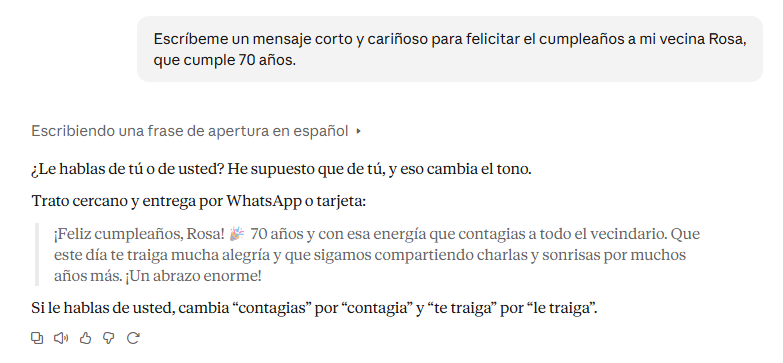
Every conversation is saved in the list on the left. Click New to start a fresh topic.
4. The + button: files and extras
Click the + under the message box. These are the ones worth knowing:
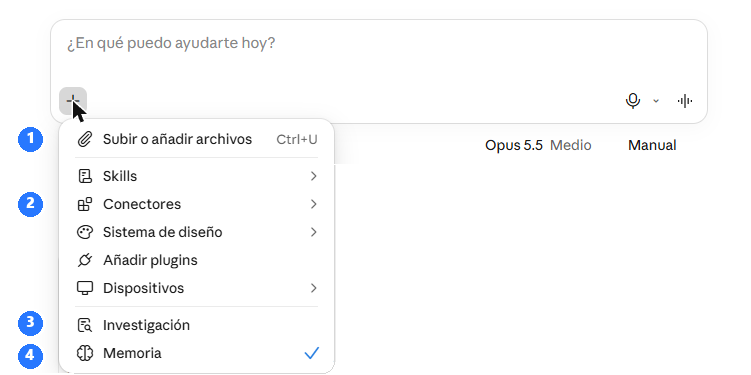
- (1) Upload or add files: attach a photo, a PDF or a document (a letter you received, a bill, a recipe) and ask about it: “What does this letter say? Do I need to do anything?”
- (2) Connectors: link Claude to your other apps (next step).
- (3) Research: for bigger questions, Claude looks through many sources and writes a longer report. It takes a few minutes.
- (4) Memory: lets Claude remember useful things between chats (for example, that you like short answers). You can switch it off.
You can ignore the other entries for now. Some depend on your plan.
5. Connectors: let Claude use your other apps
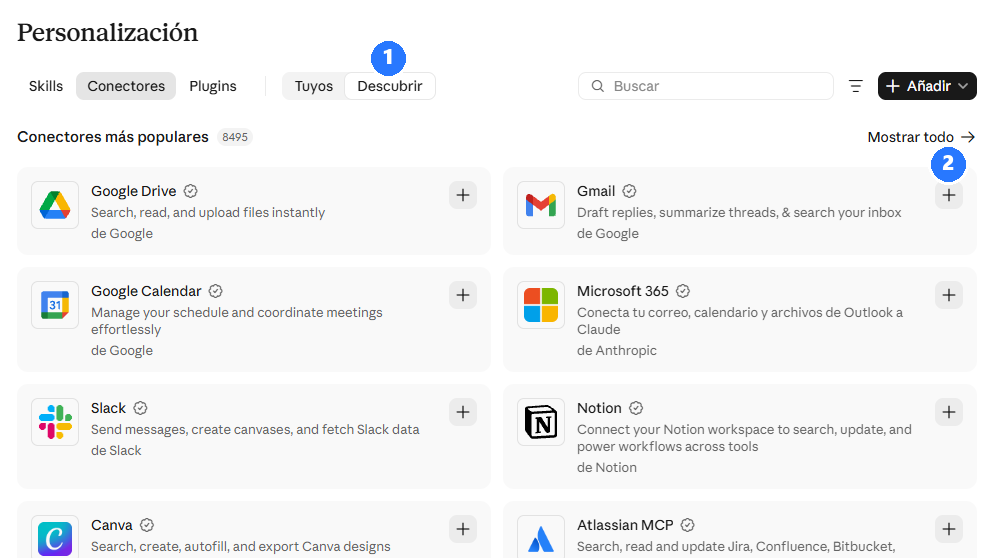
Connectors link Claude to apps you already use, such as Gmail, Google Calendar, Google Drive, Notion, Slack or Canva, plus thousands more. Then you can ask: “What do I have on my calendar this week?” or “Summarise the last emails from my bank.”
How: in the + menu choose Connectors.
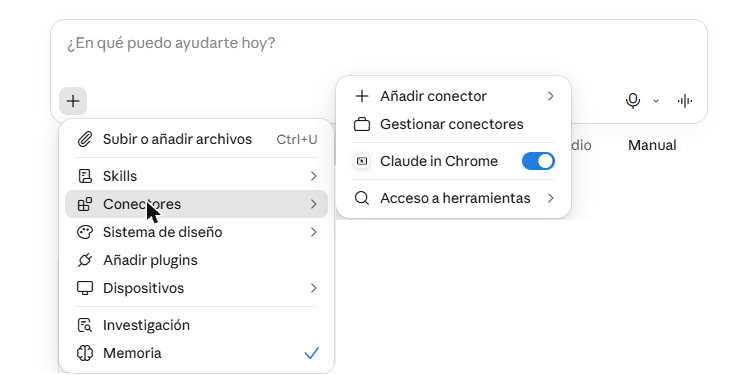
You can also browse them all: Customize in the left menu → Connectors → Discover (1). Click the + next to the one you want (2) and sign in on that service's own page.
- You choose what to connect, and you can disconnect at any time (Customize → Connectors → Yours).
- Read what each connector is allowed to do before you accept.
- You sign in on the other service's own page. Never type a password in the chat.
6. Projects: one topic, one place
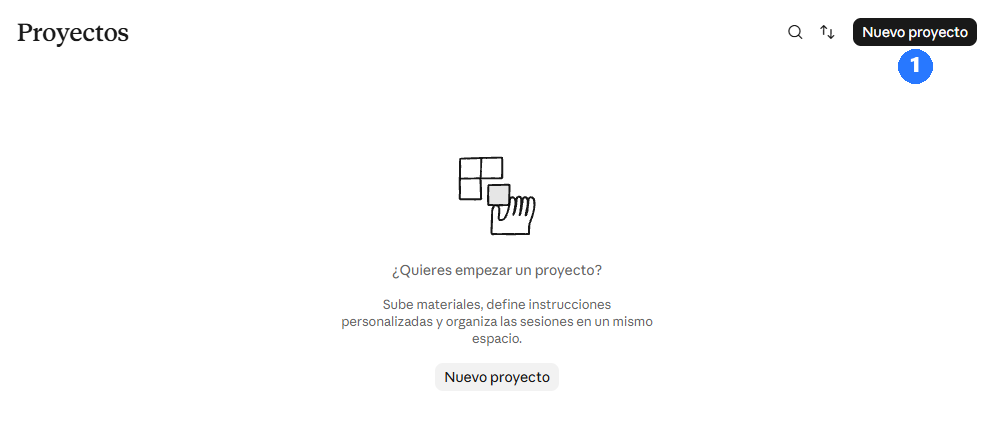
A project is like a folder. Put the files and instructions for one topic in it (“Mum's paperwork”, “Trip to Rome”, “Studying for my exam”) and every chat inside already knows them. Find it in the left menu: Projects → New project (1).
7. Five good habits
- Never type passwords, card numbers or ID numbers in the chat.
- Claude can be wrong. For health, money or legal matters, check with a professional or an official source.
- Don't know what to ask? Ask Claude: “What could you help me with in my daily life? Give me 10 ideas.”
- Say what you want changed instead of starting over.
- If you reach the usage limit, it resets after a few hours.
8. That's all you need to start
Pick one small task from your week today and ask Claude to help. That is the fastest way to learn.
Want it as a PDF? Get the free PDF (5 pages, same steps, same screenshots). More plain guides are in the guides index.